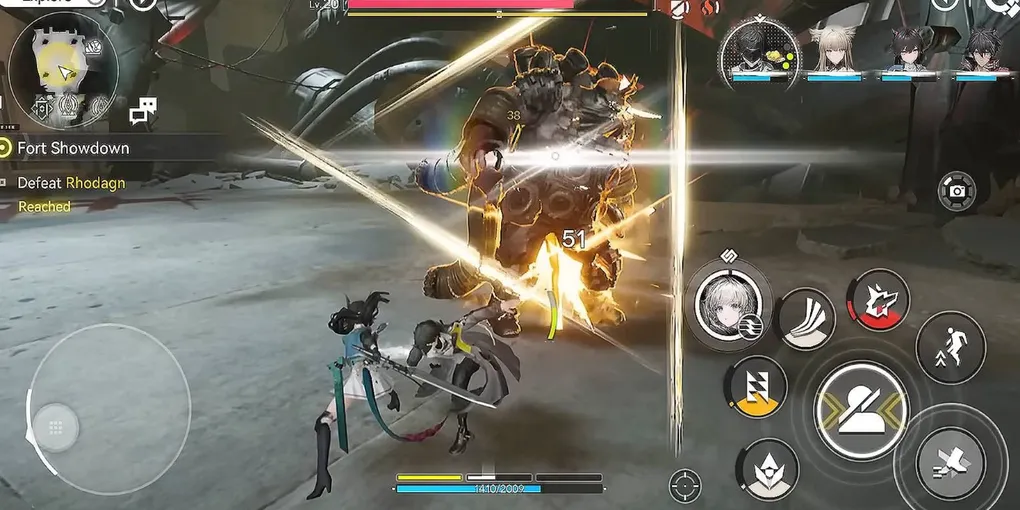
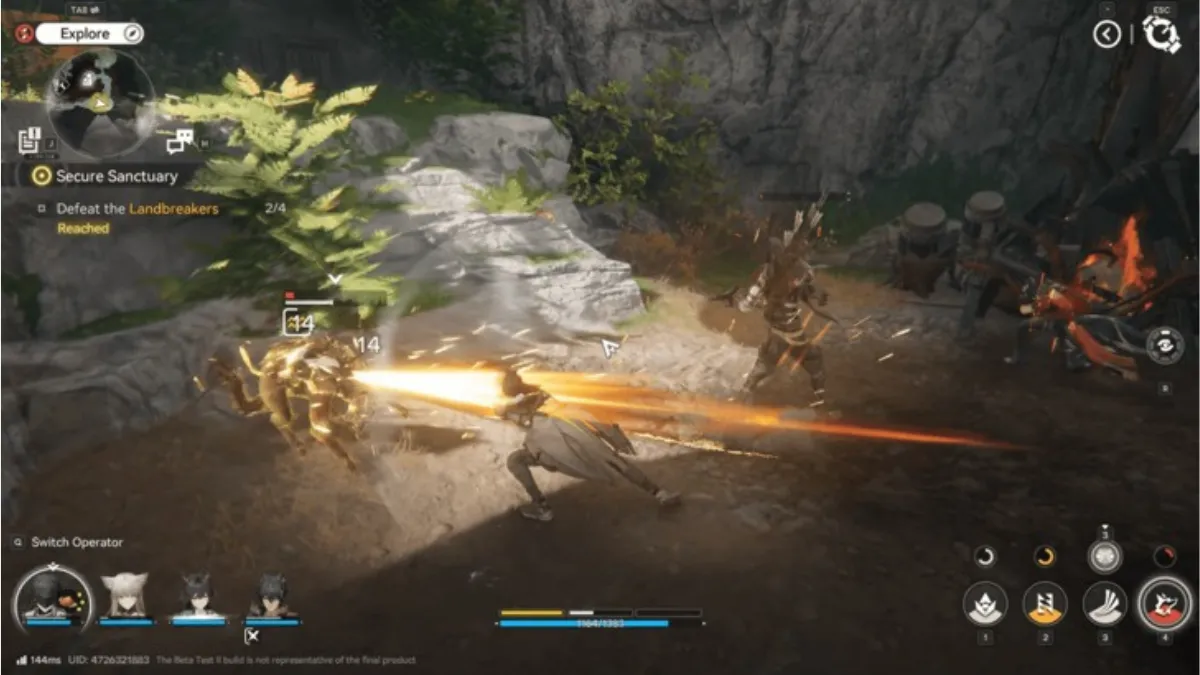
Best graphics settings for Arknights Endfield PC lag fix
Applying the right Arknights. Endfield PC lag fix settings can significantly boost FPS and stabilize gameplay. Start here. Always start here before you go digging into Windows registries or driver settings because occasionally the fix is just… turning things down. Which feels obvious, but you’d be surprised how many people skip this step.
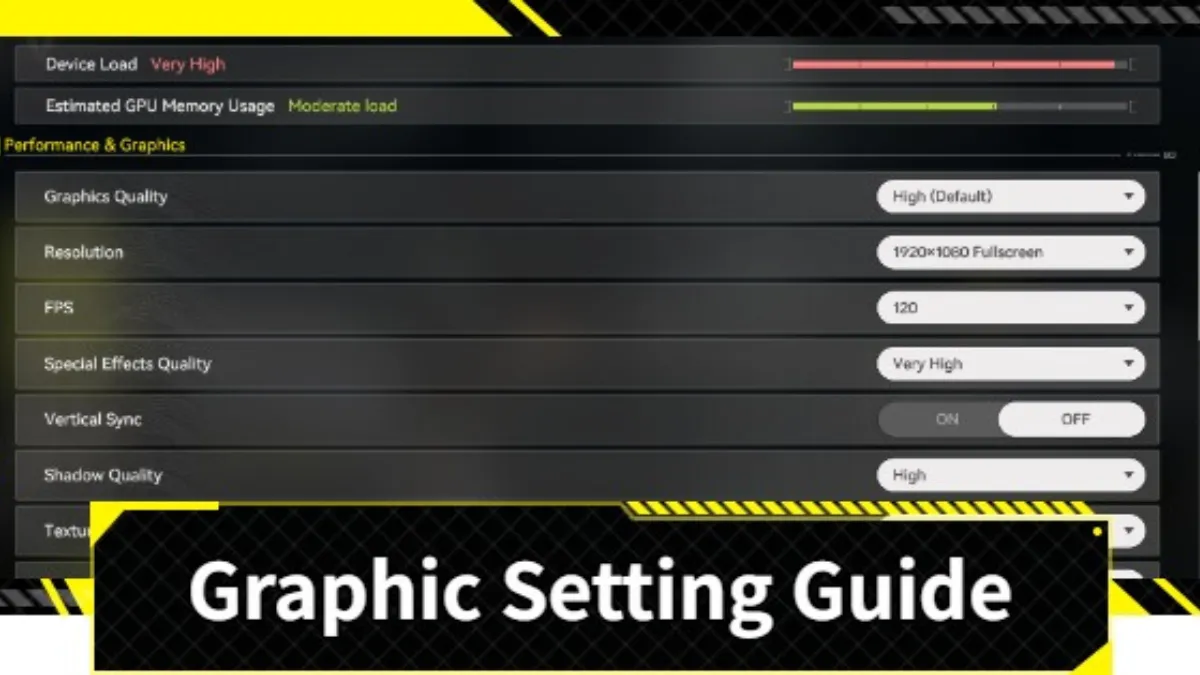
Open Settings → Graphics and apply this:
| Setting | What to Set It To |
|---|---|
| Rendering Quality | Medium-low if your GPU is older than 2020 |
| Shadow Quality | Low. Nonnegotiable. |
| Anti-Aliasing | FXAA, not TAA |
| Motion Blur | Off. Just off. Always off. |
| Depth of Field | Off |
| Max Frame Rate | 60 FPS cap |
| V-Sync | Disabled |
| Resolution Scaling | 80–90% |
The shadow setting is the one that surprises people most. Shadows in UE5 are… expensive. The cost of shadows in UE5 is disproportionately high when compared to their visual impact at low and high settings. Dropping that one setting alone pushed me from 38 FPS to 54 on a mid-range build, and the game still looked great. Like, genuinely excellent. I had to remind myself I hadn’t changed anything.
Players running an RTX 3060 or an RX 6600 (solid cards, nothing wrong with either) are consistently landing a stable 60 FPS after this config. That’s the target. Not 144. Not uncapped. Just smooth, locked, consistent at 60.
If you’re still struggling with performance, make sure your setup matches the recommended specs in our Arknights Endfield download PC guide.
Arknights Endfield PC lag fix: System-level optimizations
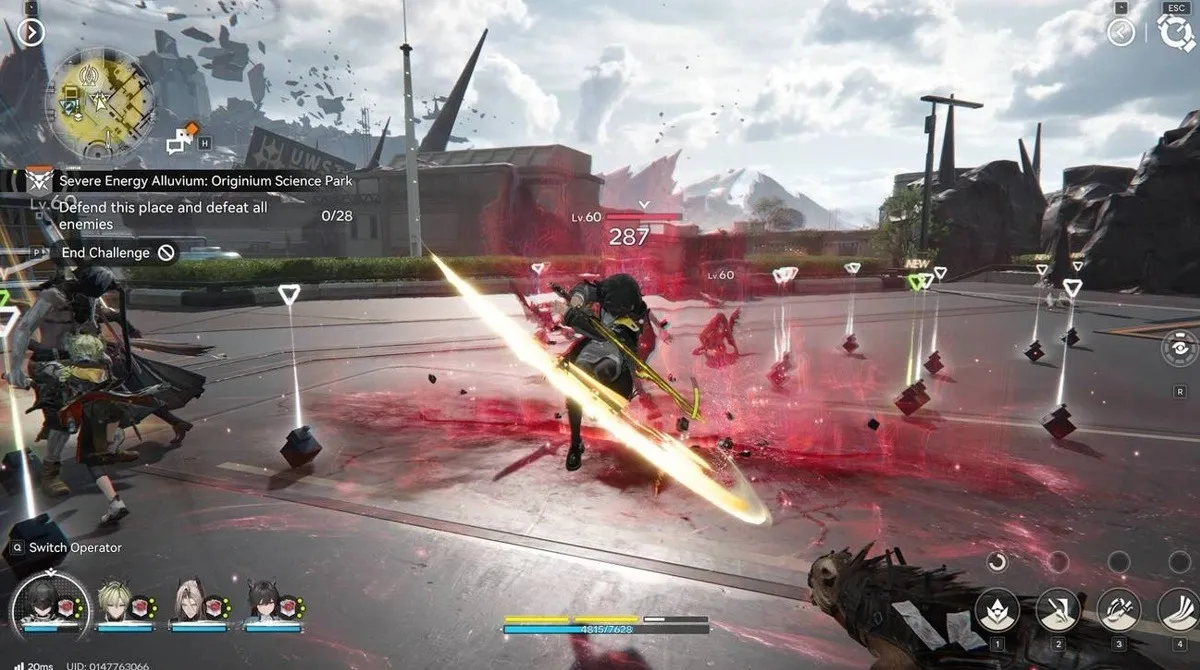
If you’ve adjusted the graphics settings and still experience stutters, the underlying problem is more serious. And this is where Unreal Engine 5’s particular… personality becomes relevant. UE5 does this thing where it compiles shaders the first time it encounters new geometry or lighting conditions. Which means the first time you walk into a new area? Freeze. Brief, but jarring. It’s not your PC dying. It’s just the engine doing homework it should’ve done earlier.
There’s no perfect fix for shader stutter on first-run patches; they will address the issue eventually, but everything below will minimize it and fix the other stuff.
In Task Manager, go to the Details tab, locate the game, right-click it, and set its CPU priority to High. Takes ten seconds. Makes a real difference in CPU-heavy combat scenes.
Update your GPU drivers seriously; just do it, I know. Everyone says the above is true. But people genuinely run outdated drivers for months without realizing it and then wonder why games crash. NVIDIA users should be on 552.22 or newer. AMD folks need Adrenalin 24.3.1 at a minimum. AMD GPU owners, specifically if you’re on DX12 and experiencing crashes, switch to DX11 in the launch options. There’s a known instability issue, and DX11 is more stable right now, even if it feels counterintuitive.
Turn on Hardware-Accelerated GPU Scheduling (HAGS) settings → Display → Graphics → Change Default Graphics Settings → flip the toggle. This feature offloads some CPU overhead to the GPU directly, which reduces frametime spikes of the kind that make your FPS counter say 60, but the game still feels choppy. That feeling? Frame time. HAGS helps.
Kill every overlay you have running, including the Discord overlay. Steam overlay. GeForce Experience. Xbox Game Bar. All of them. Each one is adding latency; you don’t notice it until it’s gone, and then you absolutely notice it’s gone. Game Bar, in particular, ironically, can cause stuttering in graphically demanding games. Microsoft really cooked on that one.
Power Plan: Ultimate Performance Search for “Power Plan” in Windows, then select Ultimate Performance. If it’s not listed, High Performance works too. Your CPU has a nasty habit of downclocking itself to save energy during loading screens, then scrambling to catch up when combat starts. This option stops that from happening.
For optimal performance builds, check our Arknights Endfield beginner guide.
Optimize Windows itself because the OS is quietly sabotaging you
This section gets skipped a lot, and it really, really shouldn’t.
Windows is doing dozens of things in the background while you play. Syncing files to OneDrive. Indexing your drive. Checking for updates. Running telemetry. None of these things matter to you. All of them matter to your FPS. These system tweaks are essential for fixing lag in Arknights Endfield on your PC, especially if you’re playing on a mid-range or low-end setup.
Disable startup apps. Open the Task Manager→Startup tab. Check what launches each time you boot. Spotify. Discord (you can launch it manually). OneDrive sync. Teams, if you let Microsoft put that on your machine. Disable everything that doesn’t need to be there.
Before you launch Endfield, close your browser. I know this sounds dramatic. But Chrome with twelve tabs open is consuming 2–4 GB of RAM that the game wants. Firefox is the same. Close the browser, launch the game, and reopen it after. This is not a complicated tip, but it works every single time.
Install Enfields on an SSD. If the game is on a traditional spinning hard drive (HDD), you will experience texture pop-in, slow loading, and asset streaming issues that no amount of settings changes will fix. Move it. An NVMe SSD is ideal; an SATA SSD is still dramatically better than an HDD. This is one of the highest-impact changes on this entire list for people who haven’t made the switch yet.
Adjust virtual memory if you’re on 8 GB RAM or less. System Properties → Advanced → Performance Settings → Advanced → Virtual Memory → Set custom size: 4096 MB minimum, 8192 MB maximum. This provides Windows breathing room when RAM becomes tight during asset-heavy scenes.
Install pending Windows updates before your gaming session, not during it. Background updates mid-session will tank performance without warning. Just… get them out of the way beforehand.
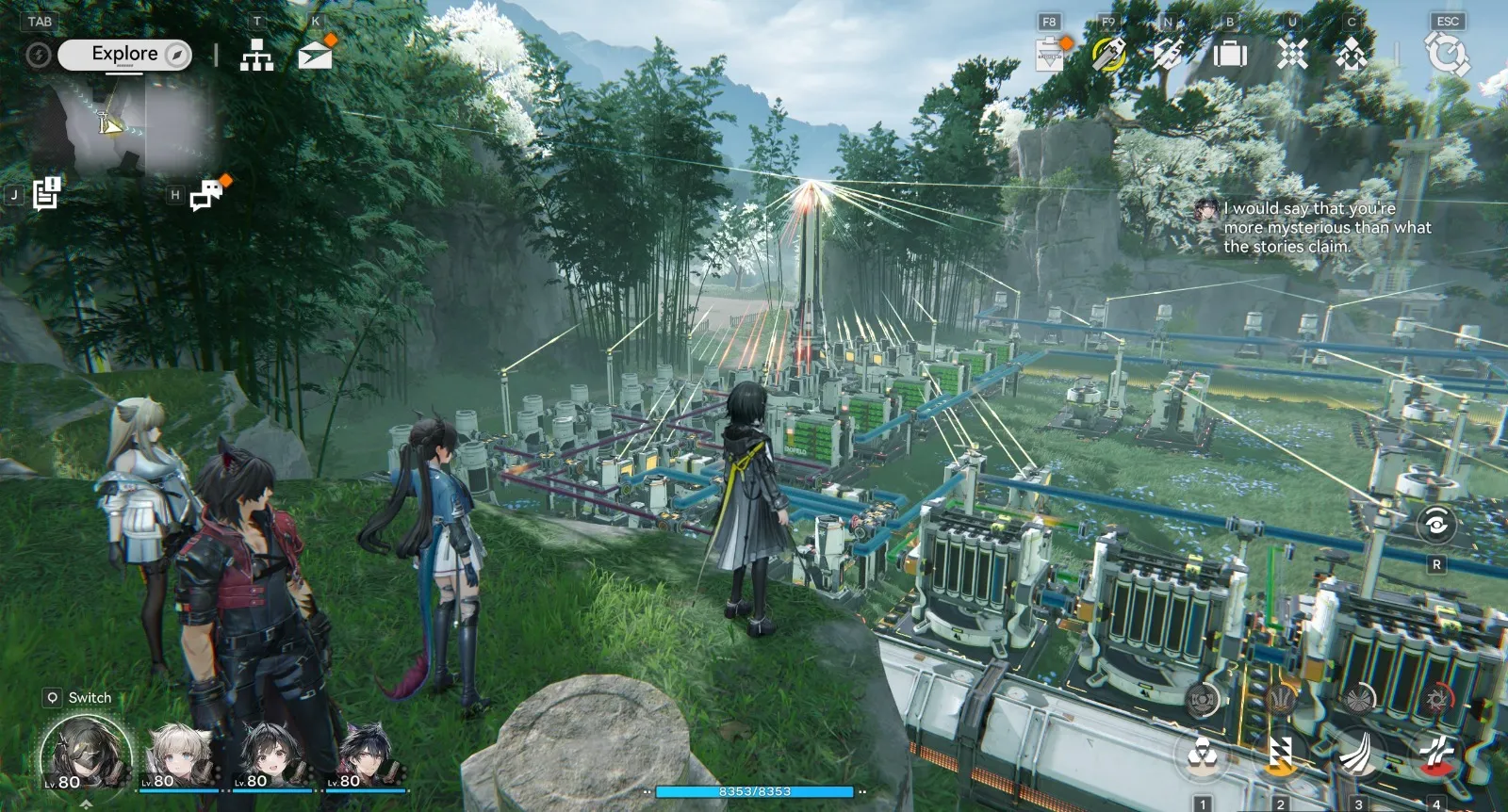
Known bugs and what Hypergryph has confirmed
The developers have publicly acknowledged that performance problems exist. Specific confirmed issues, as of this writing:
- Shader compilation stutter on first launch patch in development, expected late March
- Memory leak after roughly 60 minutes of continuous play. The current workaround is restarting the client every hour, which is annoying but effective
- DX12 instability on AMD GPUs: use DX11 for now
- VRAM overflow on 6 GB cards lowers texture quality to Medium to stay within budget
Hypergryph has committed to a dedicated performance update covering shader stutter, memory usage, and GPU compatibility. No exact date yet, but the communication has been consistent and the direction is clear. This is a studio that’s supported Arknights for years; they’ll address it. It’ll just take a few weeks.
With this fix for lag in Arknights Endfield on PC, you should notice smoother gameplay and better overall performance. Check out our Arknights Endfield tier list for the best characters and builds to optimize performance.
In the meantime, the fixes above are what we have. And honestly? They work. Not perfectly, not forever, but well enough to actually play the game the way it was meant to be played. Which, once it’s running properly, turns out to be really, really good.
This is currently the most effective Arknights Endfield PC lag fix for 2026.