Gaming room setup: light, layout and mood, in an order that makes sense
Set up your gaming room around light, layout and mood: where the screen sits, how to light the space and your face on camera, and how to keep it yours.
You sit down to play and the room is not quite cooperating. There is a reflection across the screen, a window glowing behind you, or lights that looked great in a photo and feel like a lot at midnight. It happens in plenty of rooms, and it does not mean you set it up wrong.
A gaming room does not have to be a showpiece. It needs to work for you, and to be somewhere you like being. Here is one way to think about it: light first, then layout, then mood, and your camera if you stream. Take what fits your space and leave the rest, since every room and every player is different.
Start with the light you already have
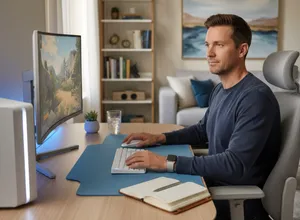
Before you buy a lamp, notice what the room already does. Where is the window? Where do the ceiling lights fall? OSHA’s workstation guidance suggests arranging the space to minimize glare from overhead lights, desk lamps and windows. It also suggests placing the screen at right angles to windows, and using blinds or drapes when a window is the problem.
Some easy things to try: close the blinds for an hour and see how the screen looks, or turn the desk a quarter turn if you can. Neither costs anything, and you will learn a lot about where the glare comes from.
Decide where things go
Layout is mostly about the window, the screen and where you sit. These are ideas rather than rules, and the best one depends on your room.
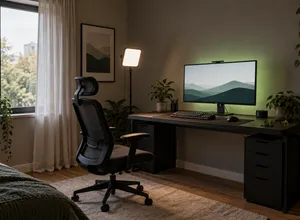
- Window at your side. Daylight reaches you without landing straight on the screen. This lines up with the right-angle suggestion above, and it often works well in a room with one window.
- Window behind you or in front of the screen. Neither is at a right angle to the screen, so these are the layouts to watch for reflections, based on the right-angle suggestion above. Blinds or a different spot for the desk may help.
- No useful window. Then your lamps do the work, so place them where they light the room without shining on the screen.
If you can only move one thing, try the desk or the screen before the lights. It tends to be the cheapest change.
Pick a mood that stays out of the way
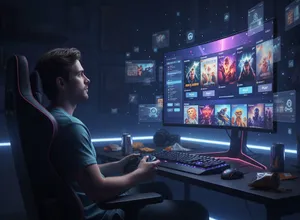
Colour is a matter of taste. Some people like a warm lamp in the evening, others like a splash of RGB behind the monitor. There is no single right choice here, and nobody needs RGB to enjoy a game.
A few options if you want a starting point: keep strong colour behind or beside the screen rather than in front of it, choose one or two accent colours instead of a rainbow, and use a dimmer or a schedule so the room can calm down in the evening. If the colours start to compete with the screen, turn them down and see how you feel.
If you stream or video chat
The camera sees your face, not your lighting design. Zoom’s best practice guide suggests that most of your light should come from in front of you, behind your monitor, rather than from behind. It also says to shut the blinds if a window sits behind you, or you will be backlit.
Two small settings can also matter. Logitech’s support page for the C920 says white balance is adjusted automatically by default, and that you can switch to manual control with the White Balance checkbox. Another Logitech page, for the C670i, says that if the video flickers you can try setting the anti-flicker option to 50Hz or 60Hz, depending on your region. Those pages are about specific models, so check your own camera’s manual.
A short checklist
- You know where the glare comes from, and you have tried one change.
- The window is at your side or covered, not in front of the screen or behind you.
- Your lights light the room without shining on the screen.
- You have chosen a mood you like, with colour kept to a few accents.
- If you stream, your light comes from in front of you and the camera settings match your room.
A gentle last thought
A room settles into place over time. Change one thing, live with it for a few sessions, and keep what feels good. It is your space.
Sources
Named here as plain text. Pages read in November 2026.
- OSHA eTool, Computer Workstations: Workstation Environment
- Zoom blog, Video Communications Best Practice Guide
- Logitech support, Customize HD Pro Webcam C920 Settings with Logitech Gaming Software
- Logitech support, Video flickers with C670i webcam