Gaming PC performance: find what limits your frame rate before you upgrade
Find what limits your gaming PC, from CPU and GPU to memory, storage, power and cooling, and when upscaling or frame generation can help before you buy.
When a game stutters or runs below the frame rate you want, the first instinct is often to buy a new graphics card. Sometimes that is the right call. Often the real limit sits somewhere else, and a new part would change very little. This guide helps you find the limit first, then walks through each part of the PC and the software options, with the trade-offs of each.
Gimaxo has not benchmarked any hardware for this guide, so you will not find performance figures here. Specifications and statements come from named pages by the makers, listed at the end. Where a sentence starts with “Our reading:”, it is this guide’s own conclusion, drawn from the source named just before it.
Find what is limiting you
Your frame rate, the number of images the game draws each second, is set by the slowest part of the chain. Microsoft’s DirectX team describes the two limits that come up most. A game is GPU-bound when the graphics card, or GPU, is working as hard as it can while the processor, or CPU, is not pushed to its limit. It is CPU-bound when the GPU finishes its work quickly and sits idle at times, because the frame rate is limited by how fast the CPU can generate instructions for it.
You can look at the graphics card in Windows, where Task Manager has a GPU entry on its Performance tab, as Microsoft’s guide describes. Microsoft’s DirectX developer blog adds a caution: the GPU percentage shown for a process is the utilization of its busiest engine, not an average of all of them. Our reading: a single number is a clue to read together with what the game is doing, not a verdict.
A common check is to lower the game’s resolution and watch the frame rate. Microsoft says lowering a setting such as resolution lowers the burden on your GPU and makes you less GPU-bound. Our reading: if the frame rate barely changes after that, the graphics card was probably not the limit. Microsoft also says the answer depends on your hardware, the game, your in-game settings and even the scene, so treat the test as a hint rather than proof.
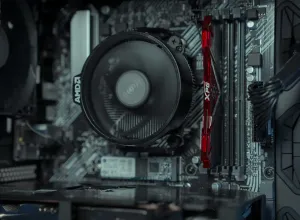
The processor
Microsoft gives a plain example of why the pairing matters: someone with a high-end graphics card and a processor from a few generations back will become CPU-bound more often than someone with the same card and a current processor. So the processor is worth a look when the check above points to it.
Before buying one, look at what else it touches. A processor is tied to a motherboard socket and to a memory type, so a new one can mean a new board and new memory. AMD’s page for the Ryzen 7 9800X3D, for example, lists the AM5 socket and DDR5 memory.
The graphics card
Resolution is one of the settings that puts load on the graphics card, as the Microsoft note above shows. So before you compare models, decide what you want from it: the resolution, the refresh rate of your display and the settings you like. A card that suits one target can be more than you need for another.
Specifications that can affect the rest of your PC are published by the maker. NVIDIA’s comparison page for GeForce cards lists a Total Graphics Power and a Required System Power in watts for each model, along with the power connectors it needs. Check these against your power supply before you buy.
Memory and storage
Memory is the part many people leave at its default. Memory kits can ship with ready-made profiles. Intel says its XMP profiles contain preset combinations of speed, timing and voltage tested by the manufacturer, and that you enable them in the BIOS, the firmware menu you open at startup. Intel presents this as a way to get higher frame rates in demanding games. Its page also carries conditions: performance varies depending on system configuration, and altering clock frequency or voltage may void product warranties and reduce stability, security, performance and the life of components. AMD offers EXPO profiles for DDR5 memory on AM5 systems, which it says allow user-friendly memory overclocking.
The platform sets the supported speeds. AMD’s page for the Ryzen 7 9800X3D lists a maximum memory speed of DDR5-5600 for two modules and DDR5-3600 for four, in the configurations it cites (2x1R, 2x2R, 4x1R and 4x2R). Those are the speeds AMD lists as officially supported in those configurations. They are not a statement of the highest speed a memory profile can reach: Intel describes XMP as running memory at higher speeds than the standard settings, and AMD describes EXPO as memory overclocking. Our reading: since Intel says performance varies with the system configuration and AMD’s supported speeds depend on the number of modules, treat a memory profile as something to try and check, not as a fixed gain.
For storage, the main change Microsoft describes is DirectStorage 1.1. Its announcement says GPU decompression is available for developers to start using, so it is a feature for games to adopt. Check whether the games you play support it before you pay for storage on that basis.
The power supply
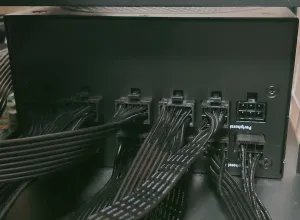
The power supply feeds every other part, so it is worth checking when you add a stronger graphics card. Do not guess the figure. Use the graphics card maker’s published requirement, such as the Required System Power that NVIDIA lists, and check that the supply has the connectors the card needs. A supply that meets the figure on paper is a starting point, not a promise about how the system will behave.
Cooling
Cooling keeps parts running within the limits their makers publish. AMD lists a maximum operating temperature of 95°C for the Ryzen 7 9800X3D, and under recommended cooler it lists “Liquid cooler recommended for optimal performance”. Other processors have different figures, so read the page for the exact model you own or plan to buy. Our reading: since AMD ties the recommended cooler to optimal performance for that model, the cooler is part of the performance picture for it, which makes it worth checking before a processor swap.
Software options: upscaling and frame generation
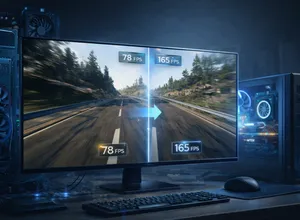
If the parts are fine and you still want more frames, software can help in some games. AMD describes FSR Upscaling as reconstructing high-quality visuals from low-resolution frames, and FSR Frame Generation as predicting and inserting new frames between rendered ones. NVIDIA describes DLSS Super Resolution as using AI to output higher-resolution frames from a lower-resolution input, and DLSS Frame Generation as generating frames while maintaining responsiveness with NVIDIA Reflex. The Steam page for Lossless Scaling says the tool creates additional frames to make games look smoother, and that it is compatible with most games, even those without built-in frame generation or scaling.
These options come with conditions. In its announcement of 10 January 2025, for release 2.13 and the LSFG 3 frame generation version, the developer of Lossless Scaling says a base frame rate of at least 30 FPS is required, 40 or higher is preferred and 60 is ideal at 1080p. It also recommends locking the game’s frame rate, to avoid full GPU load and reduce the impact on latency. Those recommendations date from that release, so check the current Steam page for later changes. NVIDIA, for its part, pairs frame generation with Reflex to keep the game responsive. Our reading: both treat latency as something to manage, so a higher number on the frame counter does not by itself tell you how the game will feel. A separate guide covers Lossless Scaling in detail.
When it is not worth it
- Your frame rate is already where you want it. Spending money to move from a good result to a slightly better one rarely pays off.
- The limit is a different part. By Microsoft’s definition, a CPU-bound game is limited by how fast the CPU can generate instructions, so a faster graphics card does not remove that limit. The reverse also holds for a GPU-bound game.
- Response time matters most to you. Since both vendors treat latency as something to manage with frame generation, check how the game feels with it on before you rely on it.
- A free setting has not been tried. Check the memory profile and your in-game settings before you buy anything, and read the conditions on the maker’s page first.
A sensible order is to find the limit, try the free options, consider software, and only then change hardware.
Sources
Named here as plain text. Pages read in November 2026.
- Microsoft DirectX Developer Blog, CPU- and GPU-boundedness
- Microsoft, How to Check Your GPU and Why It Matters (Windows learning center)
- Microsoft DirectX Developer Blog, GPUs in the Task Manager
- Microsoft DirectX Developer Blog, DirectStorage 1.1 now available
- AMD, Ryzen 7 9800X3D desktop processor page
- AMD, EXPO technology for AM5
- Intel, Extreme Memory Profile (XMP)
- NVIDIA, GeForce graphics cards comparison
- NVIDIA, DLSS technology page
- AMD, FidelityFX Super Resolution (FSR) page
- Steam store page, Lossless Scaling
- Lossless Scaling developer announcement on Steam, “2.13 released | 3.0 beta”, 10 January 2025