Gaming desk setup: where to start, in what order and what to add
A starting guide to your gaming desk setup: the desk, your chair and screen, accessories and cables, in the order that fits how you actually use the space.
A good desk setup rarely comes from one big purchase. It usually comes from a few small decisions, made in a sensible order: where the desk sits, how you sit at it, what stays on top and what lives somewhere else. This guide gives you that order, with a starting point for each step. Each topic also has its own, more detailed guide on Gimaxo, so here we keep to the overview.
For comfort we rely on workplace guidance from OSHA in the US and from the UK Health and Safety Executive (HSE). It is written for offices, not for gamers, so treat every number as a starting point and adjust to your own body. If something hurts or keeps hurting, a health professional is the right person to ask. Gimaxo has not tested any setup for this guide.
Start with how you use the desk
Before you move anything, think about a normal session. What do you reach for? Probably a keyboard and mouse, headphones, a drink, maybe a notebook. Where do your eyes go, and how long do you stay put? Those answers shape most of what follows.
A simple way to begin is to clear the desk and put back only what you use every day. The rest can go on a shelf, in a drawer or on the floor beside you. Once the desk is bare, you can see what is actually missing before you buy anything.
Choose the desk first
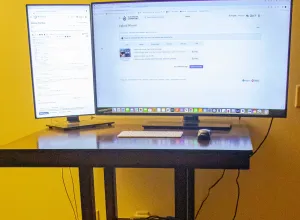
Everything else sits on the desk, so it comes first. At the overview level, three questions matter. Is there room to sit down and move the chair? Is the surface deep enough for the screen to sit straight ahead of you? Will the top stay steady when you move the mouse?
OSHA’s guidance on desks says the surface should let you place the monitor directly in front of you, at least 20 inches (about 50 cm) away. It also says to avoid storing items such as a PC case under the desk, and that a desk should leave enough clearance for your legs and suit a variety of working postures.
If you are shopping for a new one, a separate guide goes through size, shape, stability and materials. Budget note: if the desk you own is workable, spend nothing here. Measure first, then decide.
Arrange it for comfort
With the desk in place, arrange what sits on it. Start with the chair, because it sets your height. OSHA’s chair guidance says the seat should let your feet rest flat on the floor or on a footrest. If your feet dangle, a footrest is a cheap fix to try before you replace the chair.
Then look at the screen. OSHA says to put the monitor directly in front of you, at least 20 inches away, with the top line of the screen at or below eye level. HSE’s version is simpler to judge: about an arm’s length away. Sit back, reach out, and see where your fingertips land.
Those are starting points, not a prescription. Adjust a little, play for a while, then adjust again. The ergonomics guide on Gimaxo goes through chair, hands and screen in more detail.
Move during the session
No setup removes the need to move. HSE’s guidance is written for workplaces, and it says no single rule for breaks fits every kind of work: the right length depends on the demands of the job. Its general advice is to take breaks before you feel fatigued, and it says the timing of a break matters more than its length.
HSE says short, frequent breaks are more satisfactory than occasional, longer ones. Its example is a 5 to 10 minute break after 50 to 60 minutes of continuous screen or keyboard work, which it says is likely to be better than a 15 minute break every two hours. Where possible, take the break away from the screen, and use it to change your posture. HSE also says to avoid break activities that demand broadly similar use of the arms or hands as the work itself.
Gaming sessions are not office shifts, so treat all of this as a starting point. Loading screens and the time between matches are easy moments to stand up.
Add accessories and plan the cables
Accessories come last, and they work best when each one solves a problem you actually have. Ask what is bothering you at the desk. Is it a lack of room, clutter, reaching too far, or a tangle of cables? Fix the problem that blocks comfort first, then the one that saves space, then the nice-to-haves.
Budget notes help here. The cheapest fixes are often moves rather than purchases: sliding the keyboard closer, clearing the area around the mouse, or putting the daily items within reach and the rest out of the way. Buy something only when moving things around has not solved it.
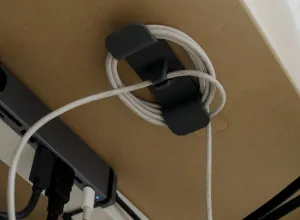
For cables, plan before you plug everything in. Decide where the power strip sits, which cables must reach the PC and which can run along the back edge. If you can, leave a little slack so you can still move the monitor or the desk. This is the guide’s own suggestion rather than something from OSHA or HSE.
Where the monitor sits
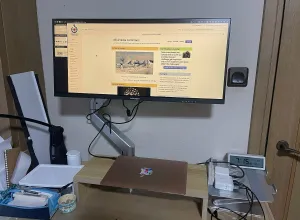
The screen matters as much as the desk. Besides distance and height, OSHA’s monitor guidance says to put the monitor so it is no more than 35 degrees to the left or right, and perpendicular to a window. If your screen sits to one side because of the layout, that is worth fixing early, since it changes how you sit all session.
Choosing a monitor, with refresh rate, response time and panel types, is its own topic. Here the point is simply that the screen belongs straight ahead of you, at a comfortable distance.
Light and glare
Glare is a desk problem as much as a room problem. OSHA suggests arranging the workspace to minimize glare from overhead lights, desk lamps and windows. A quick check is to look at the dark screen and see what reflects in it. Lighting the whole room is a bigger topic, so we cover it separately.
A final check
Run through this once the desk feels settled:
- You can sit down and roll the chair back without hitting anything.
- The screen is straight ahead, at least 20 inches (about 50 cm) away, with the top at or below eye level.
- Your feet rest flat on the floor or on a footrest.
- What you use every day is within reach, and the rest is out of the way.
- Cables are planned, with a little slack.
- You have a plan for short, regular breaks away from the screen, where you can change position.
If something still feels off, change one thing at a time. It is easier to tell what helped.
Sources
Named here as plain text. Pages read in November 2026.
- OSHA eTool, Computer Workstations: Desks
- OSHA eTool, Computer Workstations: Chairs
- OSHA eTool, Computer Workstations: Monitors
- OSHA eTool, Computer Workstations: Workstation Environment
- HSE, Working safely with display screen equipment: good posture
- HSE FAQ, “Should VDU users be given breaks?”